How to read shards in Cyberpunk 2077 without missing a single entry
Shards are one of the most quietly important collectible types in Cyberpunk 2077, and a surprising number of players walk away from Night City without ever realizing they have a personal archive of in-world lore sitting in their inventory. Each shard is a piece of digital media that someone in the city recorded, encrypted, or sent, and the game stores them in a dedicated journal tab that most players only stumble across by accident. If you have ever found a glowing icon on a dead drop, a building, or an NPC and wondered where that recording went, the answer is the Shards menu, and it is simpler to reach than the game makes it look.
This walkthrough is written for players who already own Cyberpunk 2077 on PC, PlayStation, or Xbox and want a clear, reliable explanation of the shard reading system. It covers how to open the Shards menu, the different categories of shards you will find, the role shards play in quests, how the system has evolved across patches, and the most common reasons shards seem to disappear or refuse to play. The same logic applies if you are playing the base game, the Phantom Liberty expansion, or the updated 2.0/2.1 versions on current consoles.
What shards actually are in Cyberpunk 2077
Shards are collectible digital recordings that the game treats as in-world media files. The lore-friendly framing is that Night City runs on cheap, widely distributed single-use storage chips, and a shard is the equivalent of a burned disc, a stolen voicemail, or a corporate whistleblower drop. Mechanically, each shard is a piece of optional or required text, audio, or visual content stored in your journal, and the game uses them to deliver short stories, worldbuilding, and quest progression hooks that do not fit into dialogue trees or codex entries.
There are three practical categories that matter for reading.
- Lore shards cover news clippings, personal diary fragments, gang memos, advertising copy, and stray internal corporate messages. They almost never advance a quest directly, but they tie quests together and explain why certain characters act the way they do.
- Quest shards are tied to a main, side, or gig quest. They are the recorded messages, intercepted transmissions, or data files that a quest gives or expects you to find. Some quest shards gate a quest step, while others only enrich a step you can already complete.
- Pickup shards are the unmarked, ambient ones you stumble across while exploring. A shard icon on a table, a dead body, a bench, or a sidewalk is usually a pickup shard, and the only way to read it is to pick it up first.
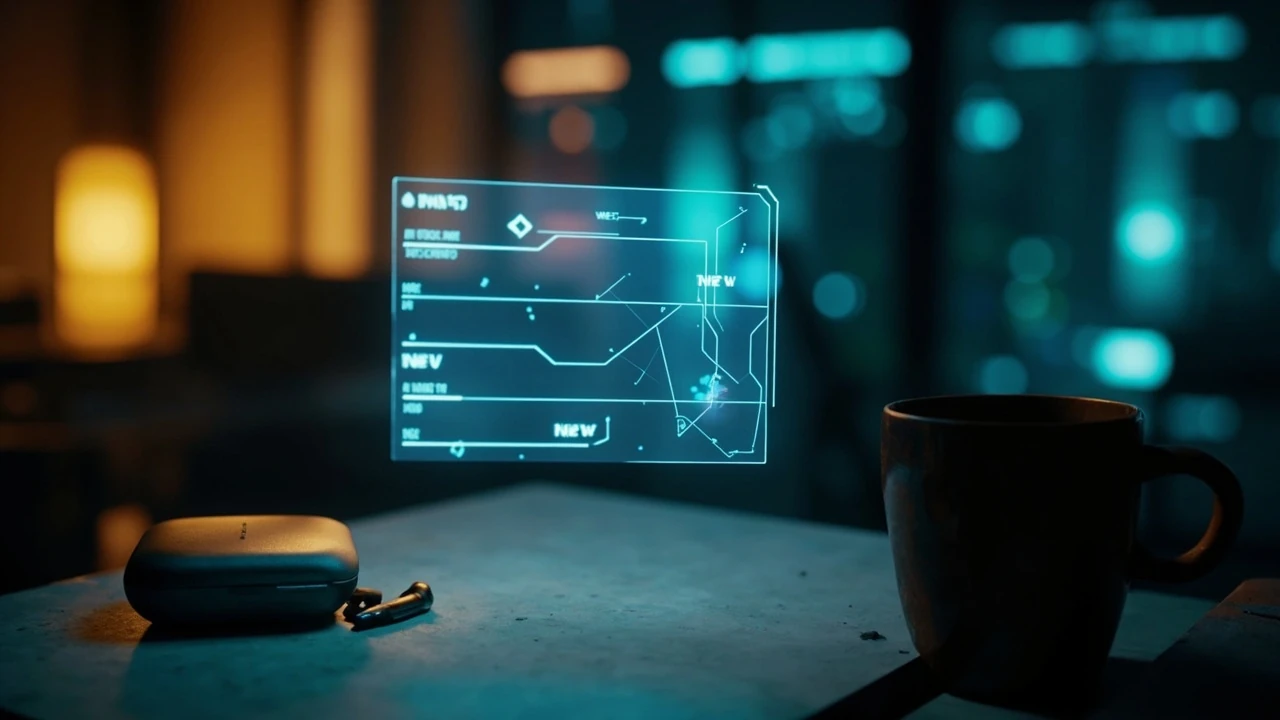
Every shard you collect is saved to your journal regardless of quest state, so you can read them at any time without losing the associated quest. The system also marks new shards with a small “New” tag until you read them for the first time, which is the easiest way to know what is waiting for you.
How to open the Shards menu on every platform
The reading interface lives inside the inventory and journal system rather than in a separate app or quick menu, and the controls are consistent across current versions of the game. According to the official walkthrough of the Shards menu system, the only way to reach your collected shards is through the main inventory, then into the Journal tab, and only then into the Shards submenu.
The exact inputs are platform-specific but the menu path is the same everywhere.
| Platform | Open inventory | Move to Journal tab | Select Shards submenu |
|---|---|---|---|
| PC (keyboard and mouse) | I | Tab right or click Journal | Click Shards in the dropdown |
| PlayStation 4 and 5 | Touchpad | R1 to move to Journal | Select Shards from the list |
| Xbox One and Series X|S | View | RB to move to Journal | Select Shards from the list |
Once the Shards submenu is open, the left side of the screen shows your collected shards in reverse chronological order, with unread entries marked clearly. Selecting any entry opens the in-game reader, which plays a short visual effect and then either displays the text on screen, plays an audio clip, or both, depending on the shard. Closing the reader returns you to the submenu, and the entry loses its New tag the first time you do this.
There is no separate audio log scrubber, no timeline, and no per-shard settings. The game treats the reader as a quick interruption rather than a separate mode, which is part of why the system is easy to miss. The dedicated walkthrough of the Shards menu notes that this inventory-first route is the only supported way to access the collection.
Step-by-step: reading a shard the first time you pick one up
Most shards follow the same pickup and reading flow, and once you understand it, you will stop losing entries. The loop is short, but the game does not always tell you that the shard has been added to your journal.
- Approach the shard icon. Shards appear as small glowing rectangles in the world, usually with a faint beam of light marking the exact pickup point.
- Hold the interact button. The game shows a short prompt such as “Read shard” or “Pick up shard.” This is a single input, not a multi-step mini-game.
- Wait for the on-screen reader to open. Some shards play instantly. Others require you to confirm by pressing the same interact key again, especially on PC.
- Close the reader. The shard is now logged in your journal under the Shards submenu, and the New tag appears until you re-read it from the menu.
- Re-read or skip at any time. The same shard stays accessible from the journal across the entire playthrough and any subsequent playthroughs on the same save family.
If you want to clear the New tag without reading, you can open the Shards submenu, select the entry, and back out before the reader fully resolves. The game still marks it as viewed, although you will not have absorbed the actual content. This is occasionally useful if you are cleaning up the journal for screenshots or speedrun routing, but it defeats the purpose of picking shards up at all.
The different shard formats you will encounter
Cyberpunk 2077 does not make a big deal of shard variety, but the format of a shard affects how you should treat it. Some shards are short text scraps that take five seconds to read, while others play as long audio monologues that you cannot easily skip.
| Shard format | What you see or hear | Common source | Practical use |
|---|---|---|---|
| Text shard | On-screen transcription only | Notes, graffiti, gang flyers, evidence boards | Quick lore beats, often tied to minor gigs |
| Audio shard | Voiced log with no on-screen text | Voicemails, intercepted calls, recorded confessions | Stronger narrative weight, often tied to quest beats |
| Audio and text shard | Voiced log with synchronized text | Main story drops, Phantom Liberty briefings | Important story context, designed to be consumed fully |
| Visual shard | Static image, photo, or short video clip | Surveillance stills, corpo marketing, propaganda | Atmosphere and worldbuilding rather than plot |
The format does not change the menu path. Every shard still lives in the Shards submenu, and the reader switches automatically between text, audio, and visual presentation. If a shard seems to be silent, it is almost always a text shard rather than a glitch, and the content is on screen even if the game does not explicitly highlight it.
Quest shards, side jobs, and Phantom Liberty
Quest shards behave like other collectibles in that they are saved to the journal, but they have a sharper relationship with the quest log. Some quests hand you a shard directly during a cutscene or as a reward for completing an objective. Others expect you to find a shard in the world to continue. The Phantom Liberty expansion, set in Dogtown, leans heavily on audio and visual shards to set up its spy-thriller tone, and several major beats in that campaign cannot be fully understood without reading the shards you pick up along the way.
Three rules keep quests and shards in sync.
- If a quest step says “Find the shard” or “Recover the recording,” the objective is a physical pickup in the world, not an entry already in your journal. Look for the glowing icon.
- If a quest step says “Listen to the shard” or “Read the data,” the shard is already in your Shards submenu, and the quest is waiting on you to open it. The game will not auto-read it for you.
- If a quest step references a contact or a code, the relevant shard is usually the most recent one in the Shards list with that person’s name. Reverse chronological order is reliable here because the game timestamps new entries at the top.
This is also where the difference between shards and other journal entries becomes important. Messages, codex entries, and quest summaries are separate from the Shards submenu, and the game does not move content between them. A recording that you receive during a side job stays in the Shards tab, and the corresponding quest summary stays in the quest log. The two are linked by topic rather than by an in-game menu, which is one of the reasons players sometimes think a shard has “disappeared” when it has only been filed under a different tab.
Why some shards seem to vanish or refuse to play
For additional context, Because the shard system is so quiet, the most common complaints are not bugs at all but expected behavior that the game does not explain well. The five situations below cover the vast majority of “missing shard” reports.
- The shard was actually picked up and is in the Shards submenu, not the main Messages tab. Open the inventory, move to the Journal tab, then select Shards from the dropdown. Entries are sorted by pickup time, with the newest on top.
- The shard is gated by a previous quest step that has not completed. Some shards do not appear in the world until the relevant quest stage triggers, especially during main story chapters and Phantom Liberty briefings.
- The shard was read in a previous patch and is no longer marked as New. It is still in the journal; only the New tag is gone. Search by topic in the Shards list or scroll manually.
- The shard is part of a piece of content that has been removed or rewritten in a later patch. A small number of shards from launch-era side jobs were trimmed during the 2.0 overhaul and are no longer findable in the same locations.
- The shard was picked up near a fast-travel trigger and the pickup was eaten by a streaming hitch. Reload the last save, walk back to the marker, and try again. This is rare on modern hardware but still happens on last-generation consoles.
If the journal itself refuses to open, that is a separate problem and usually points to a softlock after a cutscene or a save file that was corrupted by a hard crash. In that case, the workaround is to load an earlier save, not to chase the missing shard. The Shards submenu cannot be opened from the pause screen, only from the in-world inventory, which trips up players who try to read shards from the main menu.
How patches have changed the shard system
The Shards menu has been one of the more stable parts of Cyberpunk 2077 across patches, but the wider quest and inventory systems around it have not. Three updates matter for anyone playing the game in 2026.
| Update | Shard system effect | Player-visible change |
|---|---|---|
| Patch 1.5 | Added next-gen console versions and reworked the inventory | Shards moved into a clearer dropdown under the Journal tab |
| Patch 1.6 | Edgerunners content and various bug fixes | A handful of new quest shards and fewer duplicate pickups |
| Update 2.0 / 2.1 | Skill tree, perk, and police rework, plus Phantom Liberty integration | Quest shards tied to removed or rewritten gigs; some pickup shards re-spotted in Dogtown |
The Shards menu controls and reading interface have not fundamentally changed since launch, which is good news if you are returning to the game after a long break. What has changed is the surrounding content, so a shard you remember from a 2020 playthrough may now sit inside a quest that plays out very differently or no longer exists at all. If you are following a guide from launch day, the most reliable way to confirm that a shard is still where it used to be is to open the relevant quest in your journal and look for a “Recover the shard” or “Listen to the recording” step.
Reading shards efficiently while exploring Night City
Reading every shard you find as soon as you find it is not always practical. Some shards play long audio logs while you are standing in hostile territory, and a few pickups can be reached only during a scripted moment. Building a simple reading habit into your route is the cleanest fix.
- After a major quest step, open the inventory, jump to the Shards submenu, and read anything marked New before fast-traveling away. This catches the audio and text shards the game drops in cutscenes.
- When you are exploring on foot, pick up shards but do not try to read them in combat. The reader pauses the world, but the pause is shorter than the time you lose by getting shot. Close out, clear the area, then reopen the menu.
- Group shards by district. Watson, Westbrook, Heywood, Pacifica, and Dogtown each have their own visual and audio flavor, and reading a stack of shards from one district at a time makes the lore easier to follow than a global random order.
- Use the Shards submenu as a checklist. If you know you finished a district and there are no New tags left, you have read everything available in that area for the current save state.
- Save before reading a quest-critical shard for the first time. A handful of shards gate dialogue branches, and reloading lets you re-experience that branch with the full context.
This habit also makes it easier to spot new shards added by patches or by Phantom Liberty. Because the journal flags anything you have not yet opened, a sudden run of New entries after a major update is a strong signal that new content has been injected into the world.
Shards versus other collectible systems in the game
Cyberpunk 2077 has several overlapping collectible systems, and it is worth being precise about which is which. Confusing them is the single most common reason players think the Shards menu is missing content.
| Collectible | Where it lives | What you do with it |
|---|---|---|
| Shards | Inventory, Journal tab, Shards submenu | Read or listen directly in the in-game reader |
| Messages and texts | Inventory, Journal tab, Messages submenu | Read short text messages from contacts |
| Codex entries | Inventory, Journal tab, Codex submenu | Browse worldbuilding summaries unlocked through exploration |
| Quest items | Inventory, main grid | Carry until the relevant quest consumes them |
| Scanned access points | Inventory, Journal tab, database | Review a record of networks you have breached |
The Shards submenu is strictly for the recorded media you pick up from glowing icons or receive in dialogue. The Messages submenu handles SMS-style text from contacts. The Codex submenu collects passive lore. Quest items are physical objects in your grid that you may be asked to deliver or examine. Keeping these lanes straight makes the journal system far less confusing than it looks on first contact.
Accessibility, audio shards, and subtitle settings
Audio shards are an accessibility consideration in their own right. A player who cannot rely on audio cues will still get the in-game reader’s visual layer, but only on shards that have a text track, which is most of them. Three settings in the Options menu affect how shards read.
- Subtitles must be enabled. With subtitles off, audio shards still play, but the on-screen transcription is hidden, which can make a long voicemail feel like silence.
- Subtitle size and background opacity are honored in the shard reader, so a player who needs large, high-contrast text will see the same customization in shards as in dialogue.
- Audio balance for the shard reader follows the master audio mix, so reducing music or boosting voice clarity in the audio settings helps a great deal during a stack of voicemail-style shards.
None of these settings change the menu path or the New tag logic, and they are saved per profile rather than per save. The main thing to know is that if a shard feels “empty,” the first place to look is the subtitle configuration, not the journal itself.
Reading shards on PC versus console: input and performance notes
The reading flow is identical across platforms, but the input feel differs. On PC, the keyboard I key is the fastest way in and out of the Shards submenu, and the mouse makes it easy to skim a long stack of entries. On console, the touchpad and View buttons sit close to face buttons, so it is easy to bump the close prompt by accident and lose your place in a long audio shard.
Performance also matters more on console than on PC when reading. The reader is a small overlay rather than a separate scene, so it does not pause the simulation entirely on PC, but on last-generation consoles it can hitch briefly if a long audio shard starts during a busy crowd scene. The pragmatic answer is to read shards while standing in a quiet alley, or to fast-travel to a safe hub such as a megabuilding lobby before opening a long voicemail.
On PC with ultrawide monitors, the reader scales correctly but the text is sometimes a little small at extreme aspect ratios. The fix is the same in-game subtitle size slider that affects dialogue, and it is worth setting once before a long session of shard reading.
How the shard system ties into Cyberpunk’s narrative design
The reason shards are so numerous in Cyberpunk 2077 is that they solve a specific design problem. The main campaign has a fixed number of cinematics, but Night City is supposed to feel like a place with its own media ecosystem, and that needs a steady supply of recordings that the player can stumble across. Shards let the writers deliver short, self-contained scenes without paying the cost of a full voiceacted quest, and they let side jobs end on quieter, more ambiguous notes than the main story allows.
For a player, the practical consequence is that the Shards submenu is a parallel storyline. Reading shards does not change the ending you reach, but it does change how that ending feels. Side jobs in Heywood and Pacifica in particular depend on shards to make their payoffs land, and Phantom Liberty uses audio shards as a near-constant background layer for its espionage plot. If you skip the Shards submenu, you are not missing gameplay, but you are missing the connective tissue that makes the world feel lived in.
For a designer or writer reading this from a GameDev angle, the design lesson is that a low-cost collectible type is one of the most efficient ways to expand the perceived depth of a world. Shards are cheap to author, almost free to localize, and they slot into the existing journal UI without a new system. The trade-off is that they are easy to overlook, which is why the menu path through the Journal tab and the small New tag matter so much.
Troubleshooting checklist for the Shards menu
If the menu itself is misbehaving rather than the content, run through this list before assuming a save file is broken.
- Confirm the input. Touchpad on PlayStation, I on keyboard, View on Xbox. The Shards menu cannot be opened from the pause screen or the map.
- Confirm the tab. Inventory, then Journal, then Shards. The Shards submenu is in the dropdown, not on the main Journal screen.
- Confirm the entry exists. Reverse chronological order places new entries at the top, so a long scroll can hide a single New shard.
- Confirm the quest. If the shard is quest-gated, the quest log usually names the exact step that unlocks the pickup.
- Confirm the patch. Update 2.0 and later moved a number of pickups, especially in Dogtown. A guide written for launch may point to a shard that no longer exists in the same place.
- Confirm the save. If the journal refuses to open at all, load the previous save and retry. A corrupted save cannot be repaired from the Shards menu itself.
If all six steps pass, the Shards submenu is almost certainly working as designed, and the only thing left to do is read.
Frequently asked questions
Where is the Shards menu in Cyberpunk 2077?
The Shards menu lives inside your inventory. Open the inventory with the touchpad on PlayStation, the View button on Xbox, or the I key on PC, then move to the Journal tab and select Shards from the dropdown. According to the official walkthrough of the Shards menu, this is the only supported way to reach the collection, and the menu cannot be opened from the pause screen or the map.
Why are some shards marked as New?
The game applies a New tag to any shard you have picked up but not yet read from the Shards submenu. The tag clears the first time you select the entry in the menu, even if you close the reader before the content finishes. This is the simplest way to tell which shards in your collection are still waiting to be read.
Can I read shards without picking them up?
No. Shards must be picked up in the world before they appear in the Shards submenu. The pickup is a single interact input near the glowing icon, after which the in-game reader opens automatically or the entry is added to the journal for later reading. Some pickups are gated by quest progress, so a shard that refuses to spawn usually means a quest step has not completed.
Do quest shards change the outcome of a quest?
Most quest shards add context rather than branching choices, but a small number of audio and text shards gate dialogue options or change how a quest step resolves. Phantom Liberty leans on this more than the base game. Saving before reading a quest-critical shard for the first time is the safest way to preserve your options if you care about a particular branch.
Why does a shard appear to be empty or silent?
Three things cause this. The shard may be a text-only entry with no audio track, subtitles may be disabled in the options menu, or you may have closed the reader too quickly for the content to load. Reopen the Shards submenu, select the entry again, and let the reader finish before backing out.
Are shards shared across save files?
No. Each playthrough maintains its own Shards submenu. A shard you have already read in a finished save will not appear as New in a new game, but it will not carry over to a different playthrough either. This is also true for characters created on the same platform but with different save families.
Do Phantom Liberty shards work the same way?
Yes. The Phantom Liberty expansion uses the same Shards submenu and the same input scheme. New shards for Dogtown content appear in the same dropdown, marked with the same New tag, and behave the same way for quest progression. The only practical difference is the higher density of audio shards in the expansion’s briefings and intercepts.
What is the difference between a shard and a message?
A shard is a recorded piece of media, such as an audio log, a video clip, or a text fragment, that the game files under the Shards submenu. A message is a short text-only communication from a contact, filed under the Messages submenu. Both live inside the Journal tab but they are kept in separate lists and serve different narrative purposes.
Can I delete shards from my journal?
There is no player-facing way to delete shards. The game stores them in the background, and the journal simply shows everything you have collected. The New tag is the only status that changes after you read a shard, and it is managed by the game rather than by the player.
Does Update 2.0 or 2.1 change how I read shards?
The reading interface and the menu path have not changed. Update 2.0 and 2.1 did rework some quest lines and a handful of pickup locations, especially in Dogtown, which means a guide written for launch may point to shards that no longer exist in the same place. The Shards submenu itself, and the way you open it, is the same as it was at release.

Leave a Reply